
LemoTV Kodi IPTV setup
This guide is part of the LemoTV IPTV setup collection. It walks through configuring Kodi media center with your LemoTV subscription. For common account and playback questions, check LemoTV IPTV FAQs.
Kodi is an open-source media center for Windows, Android, Linux, and more. This LemoTV Kodi IPTV setup guide uses the official PVR IPTV Simple Client add-on with your LemoTV M3U playlist.
Install Kodi
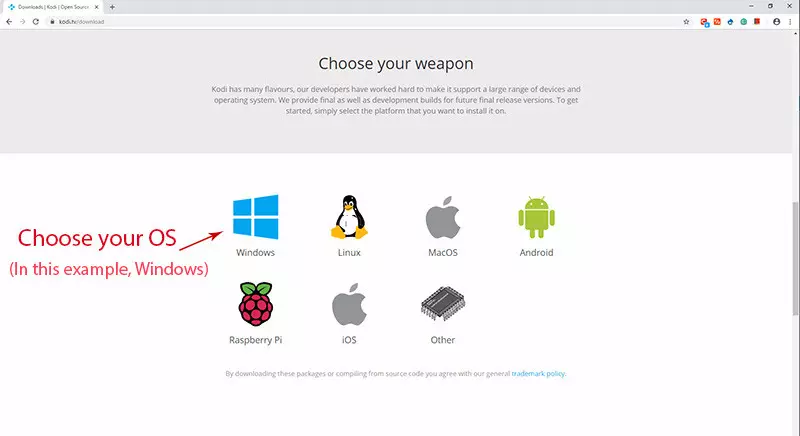
Download Kodi from the official Kodi website for your operating system and complete the installation wizard.
Enable PVR IPTV Simple Client
Step 1 — Open Add-ons
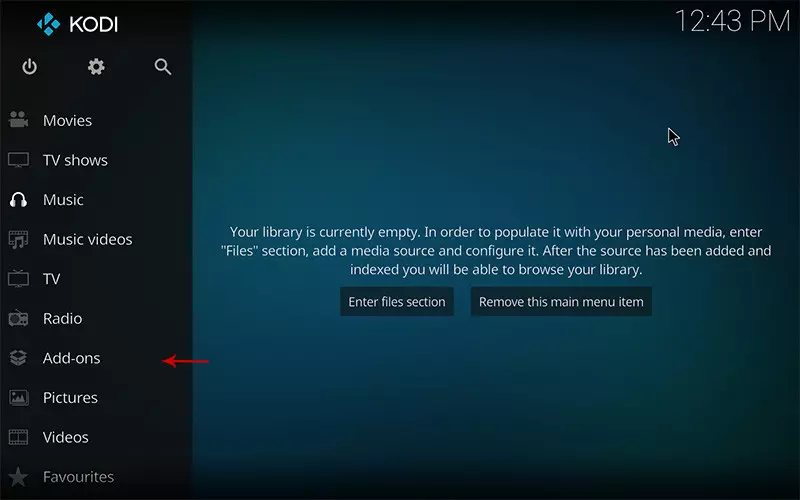
In Kodi, go to Add-ons from the main menu.
Step 2 — Install from repository
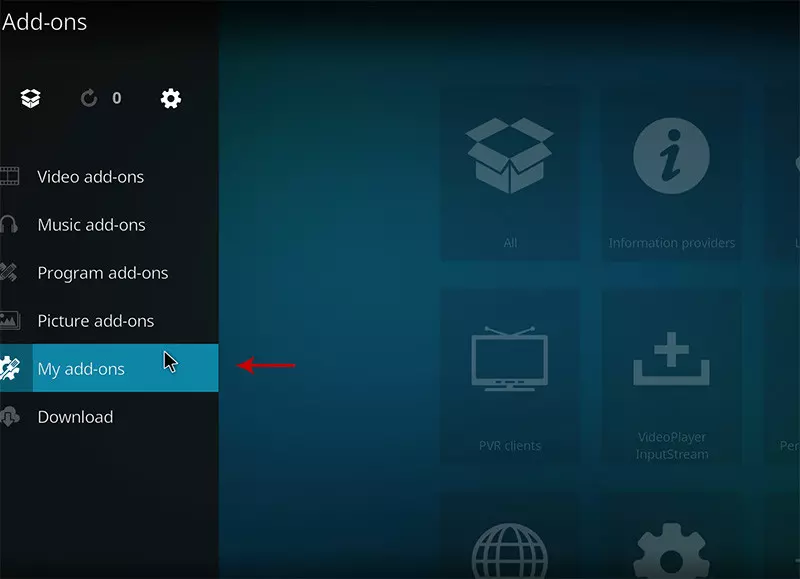
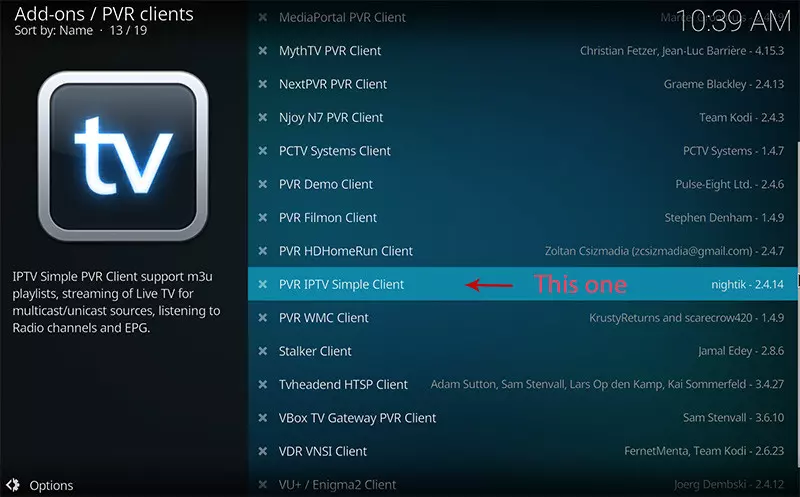
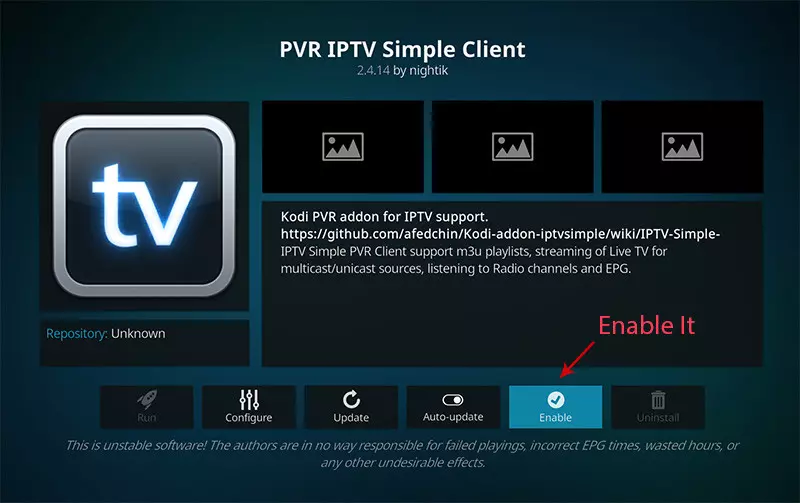
Choose Install from repository → Kodi PVR add-ons → PVR IPTV Simple Client → Install.
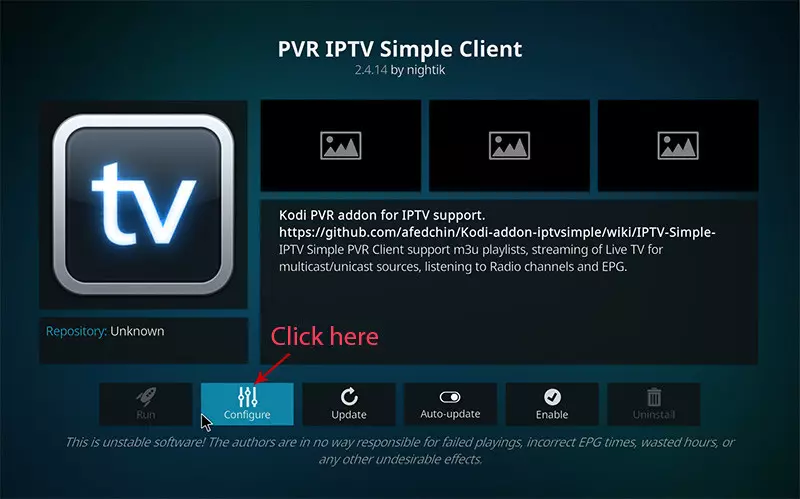
Step 3 — Configure the client
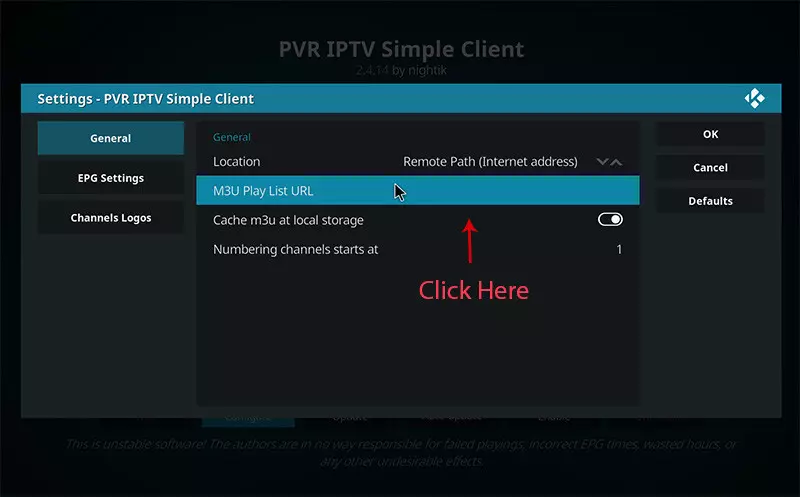
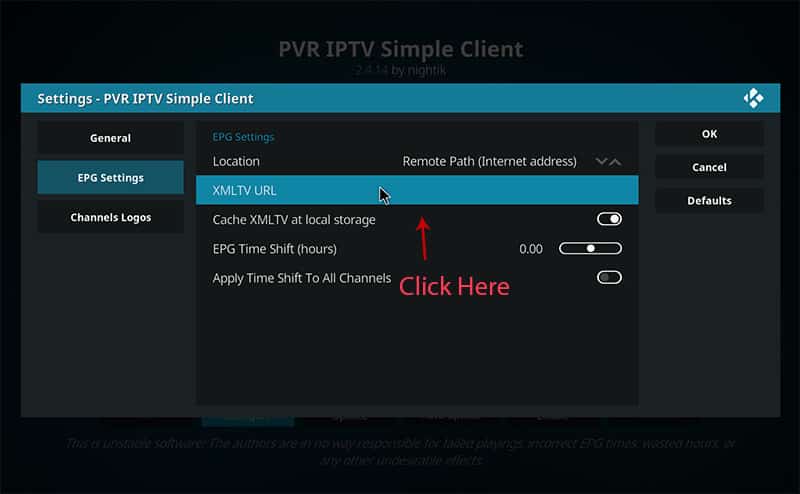
Open PVR IPTV Simple Client settings, go to the General tab, and set Location to Remote path (URL).

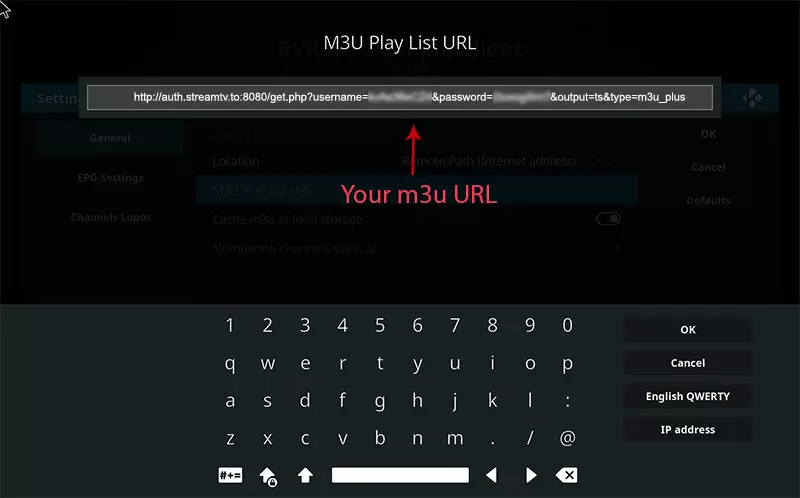
Step 4 — Paste LemoTV M3U URL
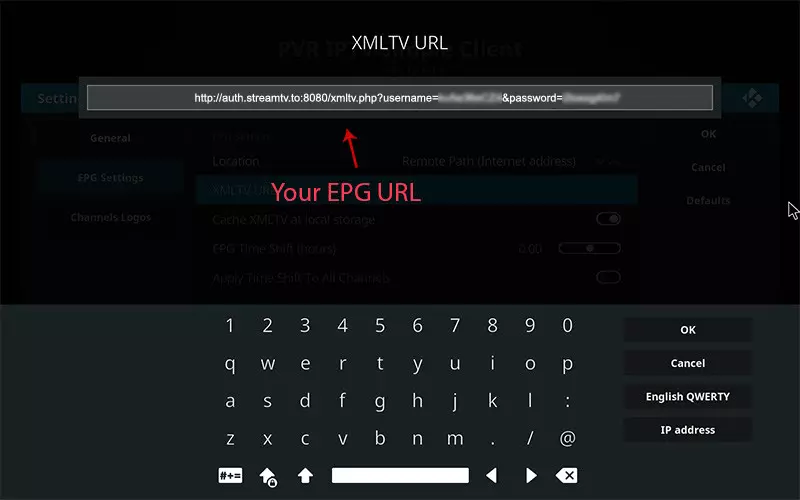
In the M3U URL field, paste the playlist link from your LemoTV welcome message. Confirm and enable the add-on when prompted.
Watch live TV in Kodi
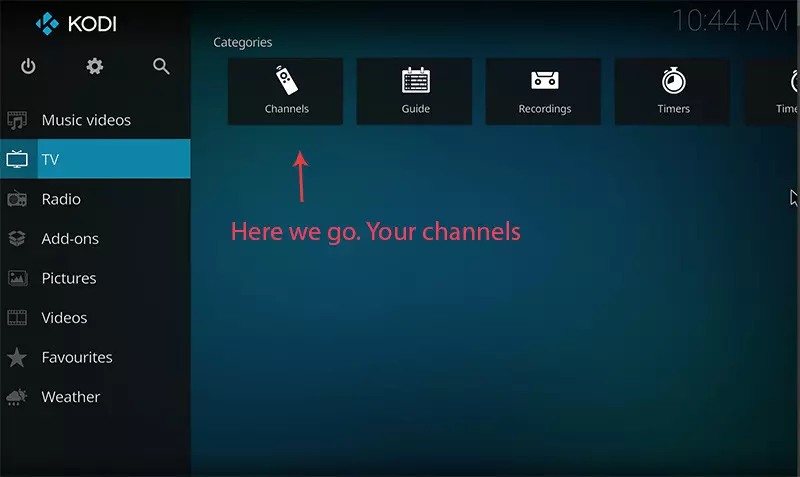
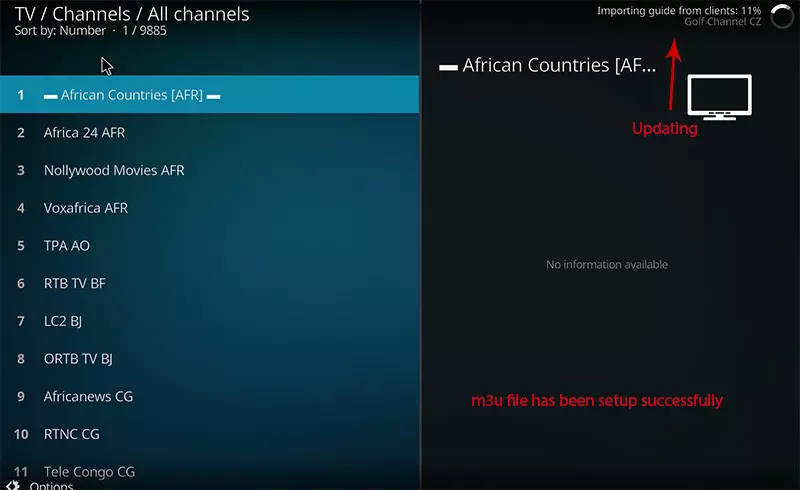
Return to the Kodi home screen and open TV from the sidebar. Channels from your LemoTV playlist should appear after Kodi refreshes the guide.
Xtream Codes note
PVR IPTV Simple Client is designed for M3U/M3U8 playlists. If you only have Xtream Codes login details, use a dedicated player such as TiviMate or VLC, or request an M3U link from LemoTV support when available on your plan.
After you subscribe to LemoTV IPTV, you receive connection details in your welcome message—typically an Xtream Codes server URL, username, and password, or an M3U playlist link. Use only the credentials supplied with your account. Need a plan first? See LemoTV IPTV pricing.
Quick troubleshooting
- Confirm your LemoTV subscription is active and you entered login details exactly as provided.
- Restart the app and your device after adding the playlist.
- Test on a stable Wi‑Fi connection; Ethernet is preferred on TV boxes.
- If channels fail to load, try the alternate login method (Xtream Codes vs M3U) when your app supports both.
More fixes: LemoTV IPTV FAQs.
Related LemoTV setup guides
VLC IPTV setup · TiviMate setup · Chromecast setup · Setup hub